
Before we get into the process on how to create a standard order a few things to note.
- Code has two sales orgs, 1150 and 6250 both with division 40. 1150 is typically for orders based in the US and Asia, while 6250 is more geared towards European customers. Customer PO's will typically list the Salt Lake City address on their PO for 1150 and will list the Bodegraven Netherlands address for 6250
- The Code plant number is 1089, this is based at the Salt Lake address
- Interco orders should be placed under 1150 10 90 90
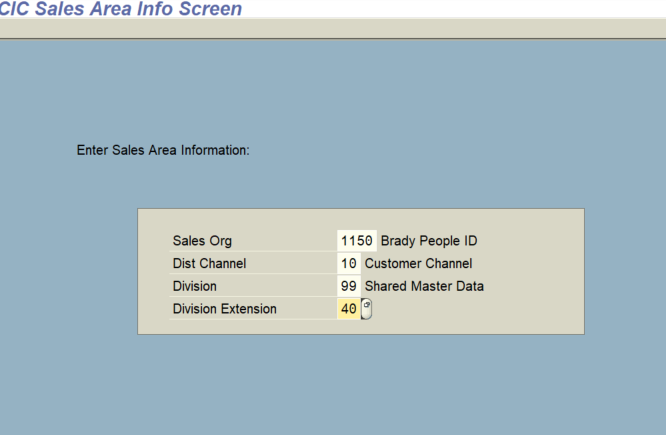
To start an order please select the correct sales org and division. In this case the PO we are using is for Bluestar and is shipping within the US. So our sales org will be 1150 with division 40.
From here we will need to find our sold to and shipping accounts. In the case of this PO Bluestar is a distributor and is drop shipping to their customer, so we will select Bluestar as our buyer and search for the customer they are shipping to as our ship to account. In some cases Bluestar will ship to themselves, if that is the case for them or another customer then our sold to and ship to would be the same account, be sure to note the shipping address though as this is not always the case.
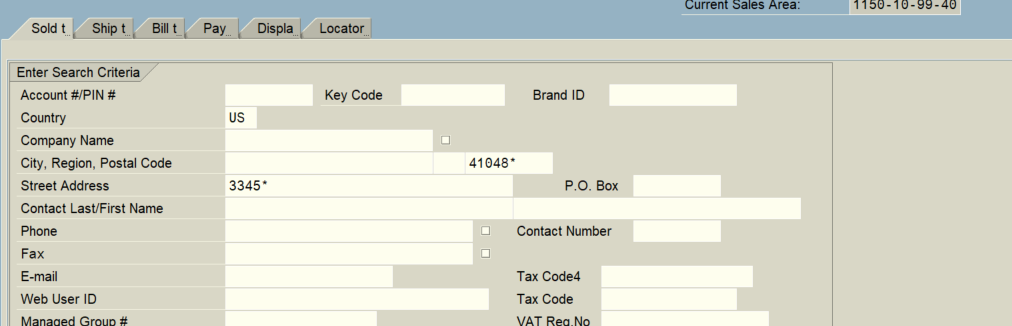
To search in SAP we are going to take the street number for Bluestar's address and add an asterisk behind it. Then we will take the zip code add it in with an asterisk behind that as well. Typically in SAP anytime you add an asterisk behind a word or number you are opening up a search request for based on that data. So we could also search by the street number and street name. An example of this would look like 3345*Point*
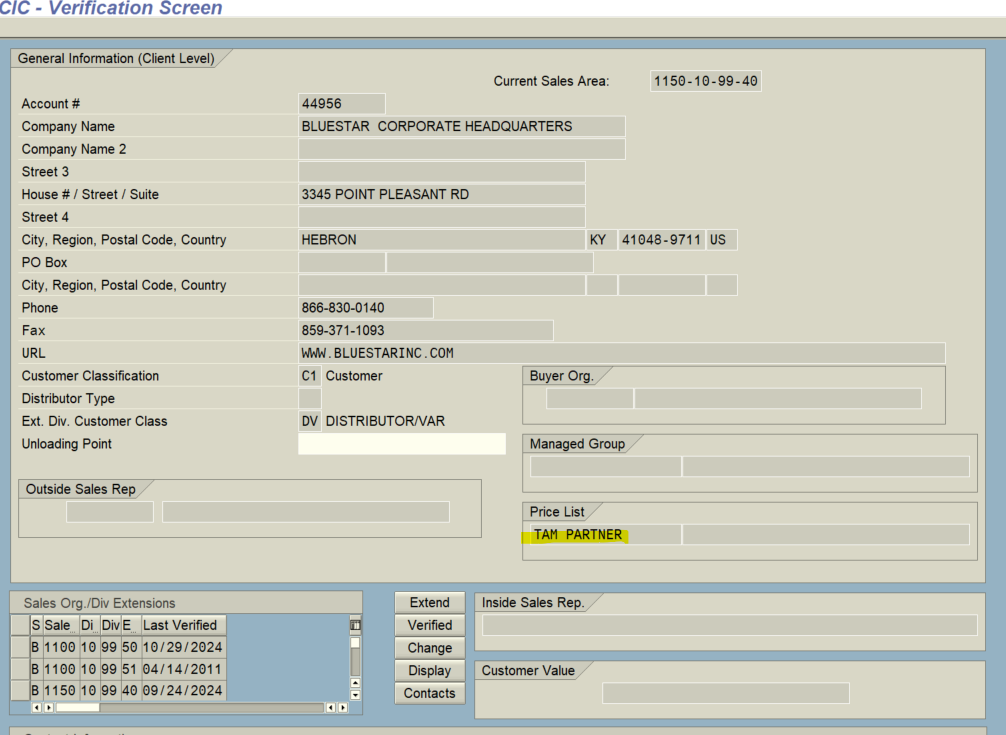
Now that we searched for the account we need to confirm it is the correct account. One way to tell would be to look at previous order history. If the account is showing order history and recent activity that is a tell it is most likely the correct account. Anther way to look would be to check the Price list tab on the account verification screen. Code similar to BPID, has price books that are based on Tier. Code has standard, TAM non partner, and TAM partner levels. EMEA and EMEA distributor for 6250. An account with a price book should show the price tier on the price list tab when on the verification screen, indicating as a good account with pricing.
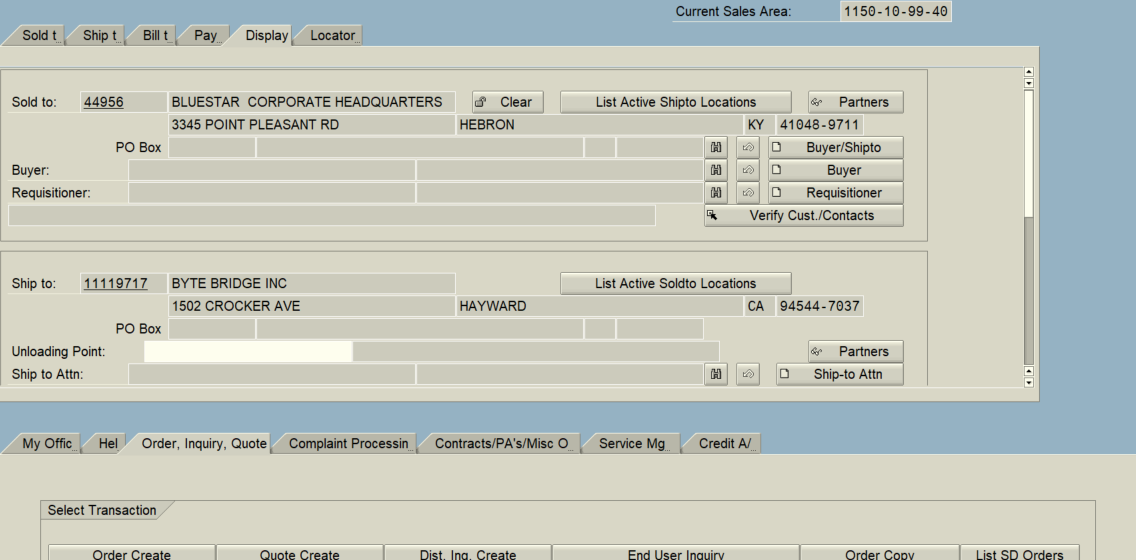
Now that our sold to is selected as Bluestar we need to select our ship to account. Search for this the same way you would have for the sold to. In this case this is shipping to Byte Bridge 1502 Crocker ave in Hayward CA. If you are not finding an account for a ship to location you are able to make a new ship to account by clicking the create button under the ship to tab.
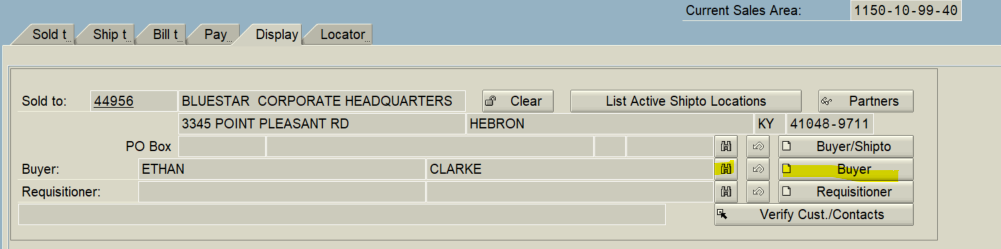
Our Display tab should look like this after we have selected the accounts.
We will need to select a buyer before creating the order. The buyer is typically who the customer would like to receive order communications from us. Sometimes it is the person who emailed the order, sometimes the PO will state a particular buyer. Select either the binoculars button to search through contacts or select the buyer create button to create the buyer contact if they are not already made. They buyer should have a good email on their contact within SAP in case we need to reach out to them. Be sure to also note any ship to attentions the customer needs listed, this would be selected in the same way as the buyer but on the ship to attn line under the ship to account.
With that done we can not hit order create under the order, inquiry, quote tab!